




Many businesses ask what Windows 365 is and how it supports modern work without relying on physical computers. It delivers a full Windows desktop through the cloud, accessible from almost any device. Users can work securely from anywhere while keeping files protected online. OnPar Technologies helps companies adopt Windows 365 with clear planning, secure setup, and ongoing support that keeps teams productive and confident every day.
Windows 365 What Is It for Everyday Users
Easy Login from Any Device
Access starts with an internet connection and a secure sign-in. The screen looks like a regular Windows computer. This helps explain what Windows 365 is in a very simple way.
Same Desktop Every Time
Apps, files, and settings stay the same on every login. The experience feels familiar and easy to follow. Daily tasks continue without changes or confusion.
Work Anywhere, Anytime
Work happens at home, in the office, or while traveling. A stable internet connection keeps everything running smoothly throughout the day.
Works Well with Microsoft Apps
Windows 365 runs smoothly with common work tools. Many people already know what is Windows office 365, which makes learning Windows 365 much easier.
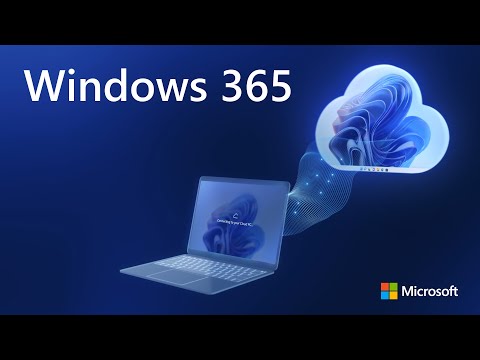
What Is Windows Office 365 and How It Relates
Understanding the Difference
Many people ask what Windows 365 is and how it compares to Office 365. Windows 365 delivers a full Windows desktop from the cloud. Office 365 focuses on apps like email, documents, and spreadsheets.
How They Work Together
Windows 365 runs the desktop, while Office 365 runs the daily work tools. Businesses often use both at the same time. This setup helps users understand Windows 365 what is it in real work situations.
Why Businesses Use Both
Companies combine these services to create a complete work setup:
- Email and files: Office 365 handles messages and documents
- Cloud desktop: Windows 365 streams the full Windows experience
- Ongoing support: Microsoft Office 365 support helps keep apps running smoothly.
This clear setup explains Windows 365 in a simple and practical way. It also shows why it fits modern business needs by keeping work tools easy to access and manage.
Key Features of Windows 365
Windows 365 offers simple features that make daily work easier. These features help explain what Windows 365 is in a clear and friendly way.
- Cloud desktop: A full Windows computer runs through the internet.
- Any device access: Work opens on laptops, tablets, or phones.
- Same experience: Apps and files look the same every time.
- Secure data: Files stay in the cloud instead of the device.
- Easy management: Settings update without user effort.
Benefits of Windows 365 for Businesses
Better Control for IT Teams
Windows 365 lets IT teams manage Cloud PCs from one place. Apps, updates, and settings stay consistent, which reduces confusion. This process works better when supported by managed IT services that handle daily system needs.
Lower Hardware Costs
Businesses save money because expensive computers are no longer required. Most of the work runs in the cloud, so devices do less processing. As a result, older computers last longer.
Supports Remote and Office Work
Employees can work from home or the office using the same desktop. Files and apps stay available, so switching locations feels seamless. This setup helps teams stay productive every day.
Improved Security and Consistency
Company data stays in the cloud instead of on devices, which lowers risk. Access remains controlled, so information stays protected. At the same time, every user gets the same secure setup.
Common Use Cases for Windows 365
Remote Employees
Windows 365 supports employees who work from home or different locations. Work desktops stay the same, so daily tasks feel familiar. This clearly shows Windows 365 what is in real work situations.
Bring Your Own Device Users
Many workers use personal laptops or tablets for work. Access stays secure because it works with mobile device management, which protects company data on personal devices.
Temporary and Contract Staff
Short-term workers need fast and secure access. Cloud desktops allow quick setup and removal, which means projects stay organized. This explains Windows 365 what it is for flexible teams.
Teams Using Microsoft Apps Daily
Windows 365 works smoothly with tools people already know. Many users already understand Windows office 365, so learning Windows 365 feels simple.
Is Windows 365 Secure
How Data Stays Protected
Windows 365 keeps files and apps in the cloud instead of on devices. This reduces risk if a device is lost or shared. Security stays strong because access remains controlled.
Safe Logins and User Access
Only approved users can sign in to Cloud PCs. Permissions stay limited based on user roles. This process works well with identity and access management that controls who can see and use data.
Built-In Security Controls
Windows 365 includes simple security features that protect daily work:
- Secure sign-in: Only verified users can access desktops
- User permissions: Access stays limited to approved tasks
- Cloud storage: Data stays protected away from devices
This setup helps businesses keep work safe while staying easy to use
How Windows 365 Helps Remote and Hybrid Teams
Same Work Setup Everywhere
Windows 365 gives remote and office workers the same desktop each day. Files and apps stay in place, so work feels familiar. This helps teams understand Windows 365 what it is in real work settings.
Easy Access for Mixed Work Schedules
Hybrid teams switch between home and office during the week. Work stays uninterrupted because the desktop follows the user. Daily tasks stay simple and consistent.
Support for Daily Issues
Remote users sometimes face login or access problems. Help stays available through remote IT support & helpdesk, which fixes issues without delays.
Works with Common Microsoft Tools
Windows 365 runs smoothly with familiar apps used for email and files. Many users already know what Windows office 365 is, so the learning curve stays low.
Windows 365 Plans Explained Simply
Windows 365 offers different plans to match how people work. Each plan supports simple access while meeting different business needs.
Main Windows 365 Plans
These plans help businesses choose the right setup:
- Business plan: Designed for small teams, and setup stays quick and easy.
- Enterprise plan: Built for larger companies, so control and security stay stronger.
- Frontline plan: Created for shared workers, which helps reduce costs.
Each plan supports cloud desktops, while access stays flexible and secure.
Why Do Businesses Choose a Trusted Windows 365 Partner?
Proven Experience
Businesses rely on steady guidance when using cloud desktops. Experience helps avoid mistakes and keeps setup simple. OnPar Technologies provides support that keeps Windows 365 running smoothly from day one.
Clear Communication
Complex ideas are explained in easy words. Steps are shared clearly, so decisions feel less stressful. This approach helps teams stay confident.
Ongoing Support
Support continues after setup is complete. Issues are handled quickly, which keeps work moving. Over time, this reliability builds trust.
Is Windows 365 the Right Fit for Your Team?
Windows 365 can make daily work easier when set up the right way. Clear guidance helps avoid delays and confusion. If expert support is needed, feel free to contact us to discuss the next steps with confidence.
FAQs
What Is Windows 365 Used For?
Windows 365 lets people use a full Windows desktop through the internet. Work stays available from almost any device.
Is Windows 365 Good for Remote Work?
Yes, it supports working from home or different locations. The desktop stays the same wherever work happens.
Do Users Need Special Computers for Windows 365?
No, most basic devices can access Windows 365. The main requirement is a stable internet connection.
How Secure Is Windows 365?
Files and apps stay in the cloud instead of the device. This helps protect business data.
Can Windows 365 Work With Microsoft Apps?
Yes, it works well with common Microsoft tools used for email and documents.
